Description
An External Pane is similar to an "application window"; it contains the menu bars, toolbars, scroll bars, status bars, desktop pane and/or internal panes currently available in that application.
Sound Rationale
The sound for an external pane is that of a window opening and closing. Again, the metaphoric and real world sounds combine to create the association with a window. The External Pane is the "window" to other documents and options within an application, like the picture window of a cottage.
Navigation
Activation
The audio look and feel supports two kinds of external pane manipulation. They are window activation and window closing.
"Where Am I?"
There is no "where am I" feed back for external panes per se. Typically, focus is on some component within the window, and that component intercepts and handles the "where am I" request.
Additional Information (Control + shift + E)
As with the "where am I" request, the request for additional information is handled by the component that has focus within the active window.
Description
In essence, this is a window that must appear inside a Swing Desktop Pane (which, in turn, appears inside some External Pane). One might also refer to it as a "document window".
The Internal Pane is similar to a "child window" whose look can be defined entirely within Java -- this is a 100 per cent pure Java window. In contrast, for example, an External Pane (see above) is an operating system specific window. Thus, when the Swing Notepad example is run on Windows 95, it looks and behaves like any other Windows window. If run on the Mac, it looks like a Macintosh window. In contrast, Internal Panes always look the same from platform to platform.
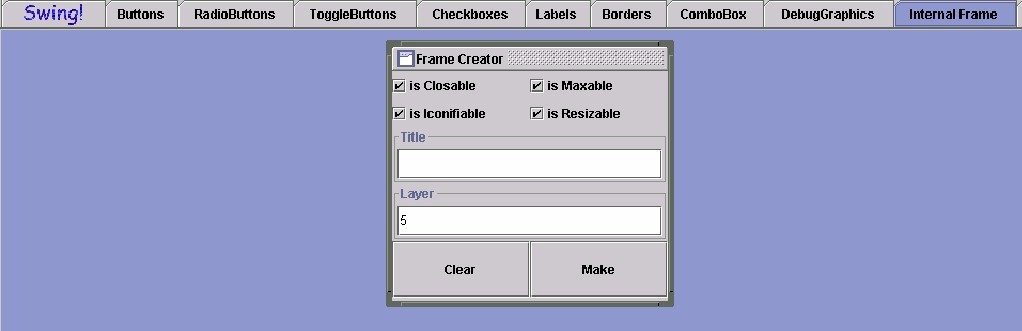
Below is a Swing Set example of the three elements related to accessing information: the Tabbed Pane, the Desktop Pane, and the "floating" Internal Pane.
Sound Rationale
From a user's perspective, internal frames and external frames are pretty much the same thing: they are windows. As such, the audio for internal panes is the same as that used for external panes. However, more was implemented for internal panes -- sounds for minimizing and maximizing, as well as activating and closing. The minimizing sound effect is that of something deflating; the maximizing audio is the same as the activation sound effect (a window opening).
Navigation
Activation
The audio look and feel supports two kinds of external pane manipulation. They are window activation, window closing, minimizing, and maximizing. Maximizing has the same feed back sequence as activation.
"Where Am I?"
There is no "where am I" feed back for internal panes per se. Typically, focus is on some component within the window, and that component intercepts and handles the "where am I" request.
Additional Information (Control + shift + E)
As with the "where am I" request, the request for additional information is handled by the component that has focus within the active window.
Description
Contrary to the term, this is NOT confined the "Desktop View" seen in a Windows based environment. Although it is a gray area, it can be the first thing a user looks at when the computer starts, it can be in an External Pane, Internal Pane, Tabbed Pane; or even a Menu Bar or ToolBar. It is basically a visual representation of "an empty box" in which internal frames and desktop icons can be placed.
Computer users, who are using a screen reader, can find themselves in a Desktop Pane and type for hours with the echo of text and functions merrily going along...until they go to save and nothing happens. This is because they have just spent the last few hours typing into oblivion. A hard lesson! By sonifying the Desktop Pane, it will act as a failsafe mechanism for computer users in the event that a screen reader function can echo typing without putting it into a document.
For an illustration see Internal Pane. The Desktop Pane is the blue area in the Tabbed Pane, surrounding the Internal Pane.
Sound Rationale
Caught in the traditional use of the concept of a Desktop Pane, the sound is the same as that used for options not available to the computer user. As elements are added to a Desktop Pane, their sonification and identification will be heard, but since a Desktop Pane is like an empty box just waiting for components to be put into it, using the general "unavailable" sound seems logical.
Navigation
Activation
The manipulation of the desktop involves the minimizing/maximizing/closing of windows and icons on the desktop. As such, the activation feed back is given by those objects.
"Where Am I?"
This sequence has two forms. The first form handles the situation where there is no active window nor selected icon on the desktop. Here the "where am I" report is virtually identical to that for navigation:
The second form handles the case where there is an active window or selected icon. Here, the final element in the sequence is the entire "where am I" sequence for that window/icon.
First Letter Navigation
First letter navigation is implemented for the desktop. In this case, the search is confined to the windows and desktop icons therein. When the desktop itself has focus, pressing a key will invoke the search system. If an window or icon is found, the feedback is the same as if the user navigated to the item via the navigation keys. Finally, if no item matches the search (this includes the situation where there is nothing on the desktop), a generic error sound is played.
Additional Information (Control + shift + E)
For the desktop, this is a list of all the windows and icons on the desktop. The titles of the windows/icons are given, and, in the case of the active window/selected icon, it is listed as "active":
A component which lets users switch between a group of components by clicking on a tab with a given title and/or icon. The tabbed pane corresponds to Windows property sheets.
Tabbed panes use a single selection model. That is, one cannot choose or select more than one tab at a time. The contents of the page accessed via the tab can be anything from a simple text area to a complicated set of other user elements
For an illustration see Internal Pane. The example given is housed inside a Tabbed Pane.
Sound Rationale
Since a Tabbed Pane functions in a manner similar to a Menu Bar or a Menu, that is, providing a series of choices and options that can be "opened" and "closed", it was decided that the best approach was to use the same sound. The resulting consistency should contribute to the perception of similar functionality.
Navigation
Activation
There is no distinction made between navigation and activation for tabbed panes. In essence, navigating to a tabbed pane is the same as opening (activating) it. As such, there is no distinct activation feed back sequence.
"Where Am I?"
First Letter Navigation
First letter navigation is implemented for tabbed pane. In this case, the search is confined to the page tabs. When a page tab has focus, pressing a key will invoke the search system. If a matching tab is found, the feedback is the same as if the user navigated to the item via the navigation keys. Finally, if no item matches the search, nothing in the list is altered, and the generic error sound is played.
Additional Information (Control + Shift + E)
No additional information is provided for tabbed panes.
Table of Contents
End of file
Last updated 13/11/1998