Component Name: Slider
States: Up, Down
Description
This is used to allow users to set the value of some multivalued dimension; for
example, a volume control could be represented as a slider.
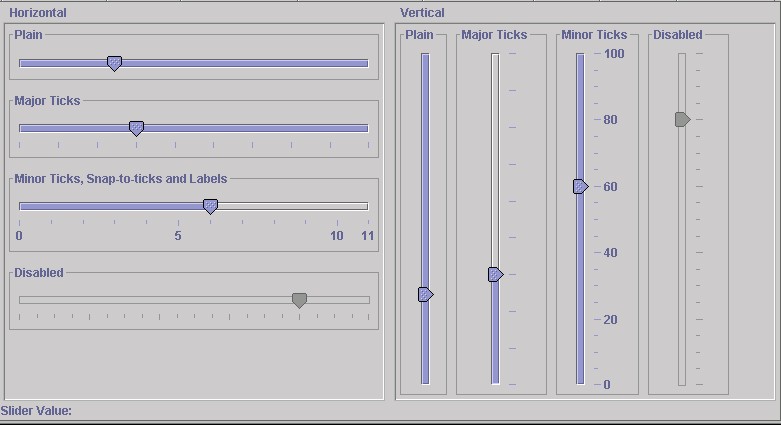
Below is the Swing Set slider sample showing both horizontal and vertical sliders which
might appear as options.
Sound Rationale
There is a "generic" slider sound which is like one of the old sliding
whistles kids used to play with. Once in a position where a slider can be
"activated" either up or down, a chromatic scale takes over and tones are
sounded either up or down depending on the direction the computer user is going through
the slider options. By using this scale, the computer user can receive feedback about the
"amount" of sliding that is going on, either in small or large increments.
The slider up or down sounds are made by combining the following chormatic tones to
indicate an up or down pattern. The tones are listed below in numerical order, while in
the forms they are referred to as "slider up sound" or "slider down
sound" as their range will depend on the values moved up or down.
Tone 0
Tone 1
Tone 2
Tone 3
Tone 4
Tone 5
Tone 6
Tone 7
Tone 8
Tone 9
Tone 10
Tone 11
Tone 12
Fone 13
Component Name: Slider
Up
Navigation
- Required navigation sound effect. navigate.wav
- Optional disabled sound effect. disabled.wav
- Optional combined component ID and state information sound effect. slider.wav
- Required name/title of component as speech. <name of slider> [Alternate].
<unknown slider>
- Optional role as speech. Slider [Alternate]. <unknown object>
- Optional state as speech. <position out of total if available> [Alternate].N/A
Activation
- Required activation sound effect. "slider up sound"
- Required name or label of component, as speech. <value you are landing on if
available> [Alternate.] <up>
- Required new state of component, as speech. [Alternate.]
"Where Am I?"
- Required speech: immediate parent, or entire hierarchy as appropriate.<title and
component type of relevant parent + slider.wav
+ name of slider + location on slider out of total if available> [Alternate].
<unknown path + slider.wav +
unknown slider>
- Optional disabled sound effect. disabled.wav
- Optional combined component ID and state information sound effect. N/A
- Required name/title of component as speech. N/A [Alternate]. N/A
- Optional role as speech. N/A [Alternate]. N/A
- Optional state as speech. N/A [Alternate]. N/A
Additional Information (Control + Shift + E)
- Hot Key – [if available] [Alternate] <no Hot Key available>
- Shortcut Keys – [if available] [Alternate] <no Hot Key available>
Component Name: Slider
Down
Navigation
- Required navigation sound effect. navigate.wav
- Optional disabled sound effect. disabled.wav
- Optional combined component ID and state information sound effect. slider.wav
- Required name/title of component as speech. <name of slider> [Alternate].
<unknown slider>
- Optional role as speech. Slider [Alternate]. <unknown object>
- Optional state as speech. <position out of total if available> [Alternate].N/A
Activation
- Required activation sound effect. "slider down sound"
- Required name or label of component, as speech. <value you are landing on if
available> [Alternate.] <down>
- Required new state of component, as speech. [Alternate.]
"Where Am I?"
- Required speech: immediate parent, or entire hierarchy as appropriate.<title and
component type of relevant parent + slider.wav
+ name of slider + location on slider out of total if available> [Alternate].
<unknown path + slider.wav +
unknown slider>
- Optional disabled sound effect. disabled.wav
- Optional combined component ID and state information sound effect. N/A
- Required name/title of component as speech. N/A [Alternate]. N/A
- Optional role as speech. N/A [Alternate]. N/A
- Optional state as speech. N/A [Alternate]. N/A
Additional Information (Control + Shift + E)
- Hot Key – [if available] [Alternate] <no Hot Key available>
- Shortcut Keys – [if available] [Alternate] <no Shortcut Key available>
Table of Contents
Last updated 11/15/98